Passcode for the Bank of Ireland mobile app

6-digit Passcode, enhanced biometrics, and how you approve everyday banking actions

Forgot your passcode? Here’s what to do

Forgot your passcode? Here’s what to do


Image of the 365 app home screen prompting you to log in using your passcode.

6-digit passcode

How you access the Bank of Ireland mobile app

Your Bank of Ireland mobile banking app is protected by a passcode, to make it secure. Your passcode is a unique 6-digit code that you will set on each of your registered mobile devices.

If you use the Bank of Ireland mobile app on more than one device, you will need a unique passcode for each device registered.

You will need to enter all 6 digits to log in and use the app. In most situations your passcode replaces your 365 PIN. The only time you may need to use your 365 PIN is on phone banking, or if you need to re-register for Bank of Ireland mobile banking on a new or existing device.

Physical security key (PSK)

If you use a PSK to log in to online banking, you will continue to use your 365 PIN the same as you do today.

When will you use the passcode?

  • Logging in to the Bank of Ireland mobile app or online banking
  • Approving purchases
  • Approving everyday banking actions, such as making a payment.

If you have enabled biometrics (Face ID or Fingerprint/Touch ID), you can still use them in the app. Find out how to set up biometrics.

  • Where will you use your 6-digit passcode, Biometrics, 365 PIN and User ID on the mobile app?

    6-digit passcode
    Biometrics (if enabled)
    365 PIN
    User ID
    When you log in to Bank of Ireland mobile banking
    Yes
    Yes
    No
    No
    When you are asked to approve or decline purchases using Bank of Ireland Mobile Banking
    Yes
    Yes
    No
    No
    When you are asked to approve everyday banking actions using Bank of Ireland mobile banking (e.g., changing your address)
    Yes
    Yes
    No
    No
    When you use phone banking
    No
    No
    Yes
    No
    If you authorise third parties to access your data or make a payment (open banking)
    Yes
    Yes
    No
    No
    If you are re-registering Bank of Ireland mobile banking on a new or existing device*
    No
    No
    Yes
    Yes

    Note:
    The only time you may need to use your 365 PIN is on phone banking, or if you need to re-register for Bank of Ireland mobile banking on a new or existing device. You’ll also have the option to confirm your identity using your Visa debit card details, if you have one.

  • Your online banking credentials: What you need to know

    6-digit passcode
    • This is a unique six-digit code that you set on each of your registered mobile devices. You’ll need it when you log in and when approving everyday banking actions in the Bank of Ireland mobile app. For example, authorising payments and adding payees. It should be easy for you to remember but hard for others to guess.
    365 PIN
    • This is a six-digit code set up when your online banking is activated. You’ll only need three of the six digits at a time. You will need it to access certain services. It’s important for account recovery, re-registering the Bank of Ireland mobile app on a new or existing device and when calling the contact centre.
    • Find out how to change your PIN or what to do if you forget your PIN
    User ID
    • You’ll get it when you first activate your account for online banking. It is your unique ID number for your online profile.
    • You’ll need it to log in to online banking on a desktop. You will not need it every day in the app, but it’s useful if you are locked out. To get a reminder of your user ID, text ‘User’ to:
      • Republic of Ireland: 50365
      • Northern Ireland & Great Britain: 50365
      • Other locations: +353 87 179 0971

Keeping your passcode safe

  • Your passcode protects your account – never share it with anyone
  • Keep it private and secure
  • If someone else gets your passcode, they could access your account.

Bank of Ireland will never call, text or email you asking you to share your 6-digit passcode, any one-time activation codes, your full 365 PIN, or your full card details.

  • What should I do if I forget my passcode for the Bank of Ireland mobile app?

    If you have forgotten your passcode, please do not worry. We recommend selecting ‘Forgot your passcode?’ right away.

    To regain access to the mobile app:

    Step 1: Delete and reinstall the Bank of Ireland mobile app

    • On iPhone: Tap and hold the app icon, then select Remove App > Delete App. Reinstall it from the App Store.
    • On Android: Tap and hold the app icon, then select Uninstall. Reinstall it from the Google Play Store.

    Step 2: Re-register for the Bank of Ireland mobile app

    Open the app and tap ‘Let’s go’. You will be asked to provide the following information:

    • Your user ID
    • Your date of birth
    • Either your 365 PIN or debit card details

    You will be prompted to set a 6-digit passcode as part of the registration process.
    Follow the on-screen instructions. It should only take about five minutes.

    Once you’ve re-registered, we’ll carry out a security check before you have full access to the app.

    And that’s it. You’re back in and ready to go.

    Need help getting started with our banking app?


Support videos


Your banking credentials: What you need to know


Biometrics: More simple, seamless and secure


Enhanced biometrics functionality

Using biometrics with your passcode

Enhanced biometrics allow you to log in faster and approve transactions quickly.

To use Fingerprint or Touch ID or Face ID on your mobile device, you’ll first need to set up your 6-digit passcode. Once that’s done, you can enjoy the convenience of biometrics when logging in to the mobile app.

How biometrics work

  • You can use biometrics to approve purchases, making your banking even quicker and easier.
  • Biometrics provides a simple way to confirm your identity when making payments. You can now use biometrics (Face ID or Fingerprint or Touch ID):
    • When verifying payments online
    • For faster, more secure checkouts
    • For a smoother experience when you’re shopping online.
  • Faster login times with biometrics. You’ll spend less time logging in and more time getting things done.
  • Biometrics also works in any situation where you previously used your 365 PIN on your mobile device.

How do I set up biometrics?

Log in to the app and go to the profile section. Depending on the type of device you are using, you should see a section called one of the following:

  • Biometric login or Fingerprint or Face recognition (for Android)
  • Touch ID or Face ID (for iPhone)

Tap on this section, then tap again to enable biometric login.

When you’ll need your passcode if you use biometrics

If Fingerprint or Touch ID or Face ID aren’t available for any reason, you’ll use your passcode instead.

Image of the 365 app home screen, prompting you to log in using your fingerprint or to use your passcode instead.


Image of the 365 app home screen, prompting you to login using your fingerprint or to use your passcode instead.

Enhanced biometrics functionality

Using biometrics with your passcode

Enhanced biometrics allow you to log in faster and approve transactions quickly.

To use Fingerprint or Touch ID or Face ID on your mobile device, you’ll first need to set up your 6-digit passcode. Once that’s done, you can enjoy the convenience of biometrics when logging in to the mobile app.

How biometrics work

  • You can use biometrics to approve purchases, making your banking even quicker and easier.
  • Biometrics provides a simple way to confirm your identity when making payments. You can now use biometrics (Face ID or Fingerprint or Touch ID):
    • When verifying payments online
    • For faster, more secure checkouts
    • For a smoother experience when you’re shopping online.
  • Faster login times with biometrics. You’ll spend less time logging in and more time getting things done.
  • Biometrics also works in any situation where you previously used your 365 PIN on your mobile device.

How do I set up biometrics?

Log in to the app and go to the profile section. Depending on the type of device you are using, you should see a section called one of the following:

  • Biometric login or Fingerprint or Face recognition (for Android)
  • Touch ID or Face ID (for iPhone)

Tap on this section, then tap again to enable biometric login.

When you’ll need your passcode if you use biometrics

If Fingerprint or Touch ID or Face ID aren’t available for any reason, you’ll use your passcode instead.

FAQs

Troubleshooting

  • Make sure that your device is using the latest version of the Bank of Ireland mobile app

    • If you already have the app installed on your device and you have enabled automatic updates, you will receive updated versions of the app automatically. Otherwise you can download it from your app store.
    • If you do not have the app on your device, go to your app store, search for ‘Bank of Ireland app’ and install the app on your device.

  • Having trouble seeing the Confirm button on your iPhone?

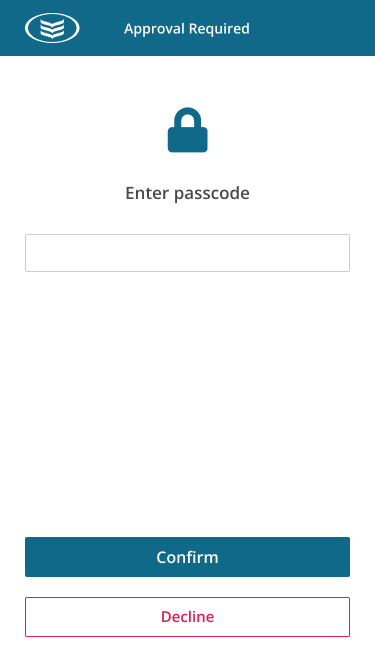
    We’re aware of an issue affecting a small number of customers using the mobile app on iOS (iPhone and iPad). A technical problem means that the Confirm button is not displaying. As a result, affected customers cannot confirm that they have entered their passcode, when they try to complete certain banking tasks that need Strong Customer Authentication (SCA).

    The issue is linked to the Display Zoom settings on certain iOS devices.
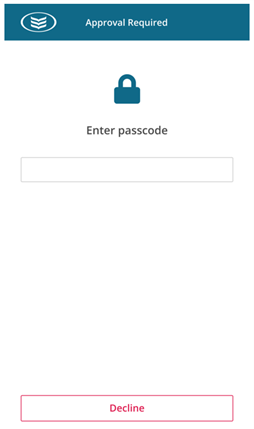
    Image of the 365 app passcode issue.
    Confirm button not displaying

    Image of the 365 app passcode issue showing Confirm button

    Confirm button as expected

    How to fix the issue

    Step 1: Update your Display Zoom settings (iPhone users)

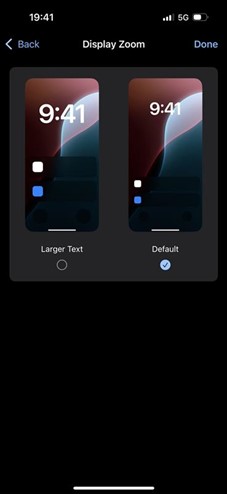
    This issue may occur if your iPhone is set to use Larger Text or Display Zoom.

    To fix this:

    • Open Settings on your iPhone
    • Tap Display & Brightness
    • Select Display Zoom
    • Choose Default instead of Larger Text. (You can go back to Larger Text later)
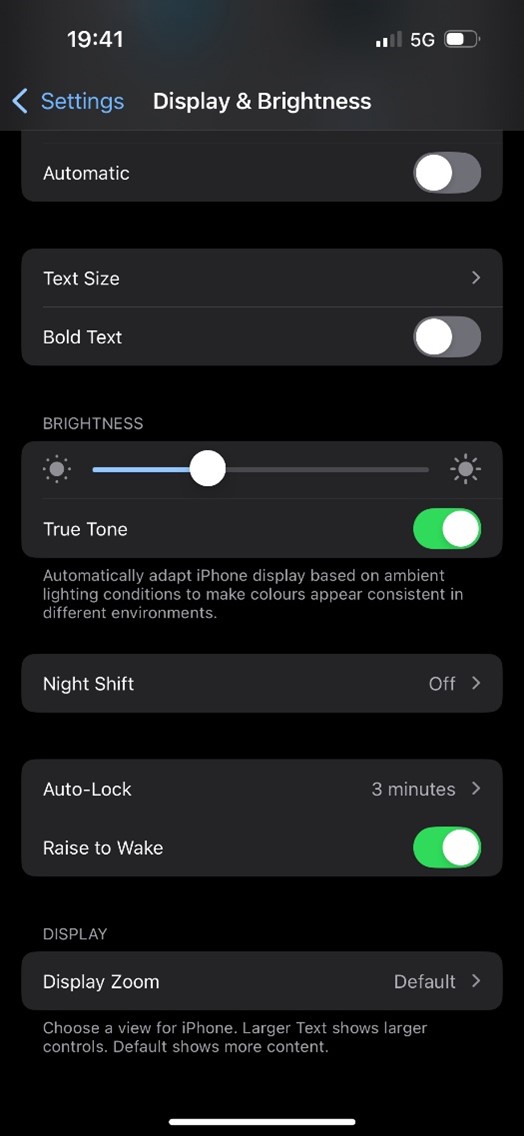

    Image of Display & Brightness settings in iOS

    Image of Display Zoom setting in iOS


    Important:

    • Your device will restart when you change this setting.
    • If you are on a call with one of our contact centre agents, the call will disconnect.
    • You may temporarily lose network connectivity.
    • You should fully close the Bank of Ireland app before making this change. You will need to log in again afterward.

    Step 2: Enable biometrics for future SCA approvals

    Once you have changed the display settings, we recommend enabling biometrics (Face ID or Touch ID) so you will not need to use your passcode for SCA in future.

    To enable biometrics:

    • Log in to the Bank of Ireland app
    • Go to Profile
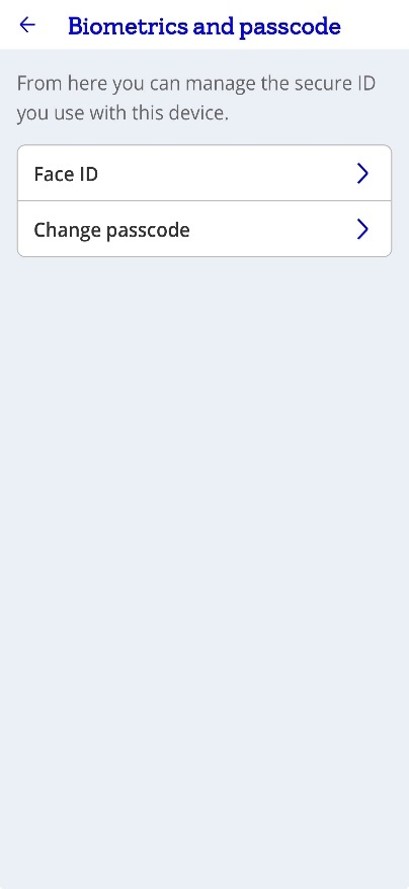
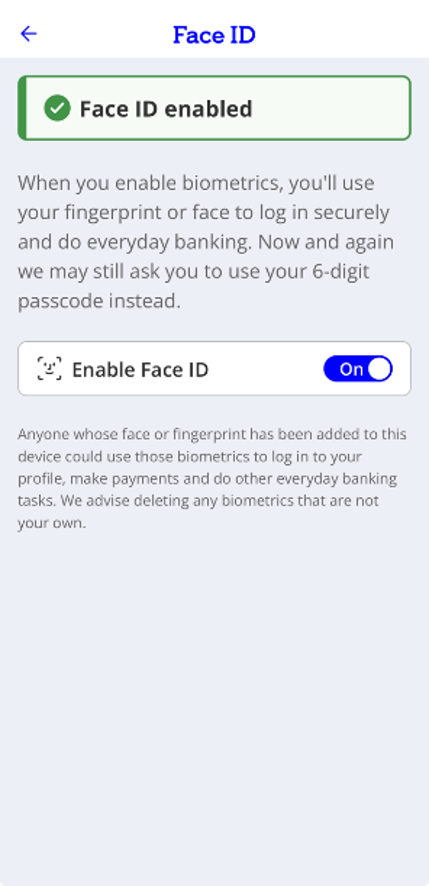
    • Select Biometrics and passcode
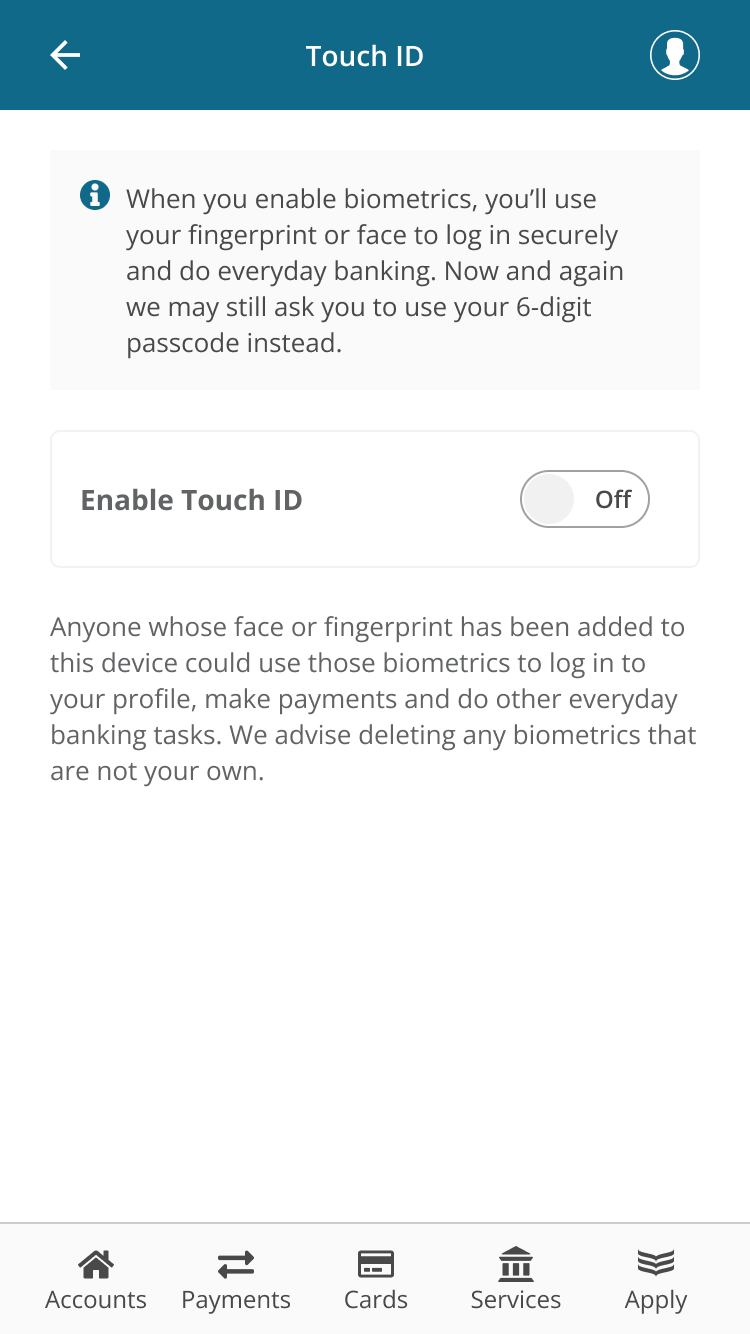
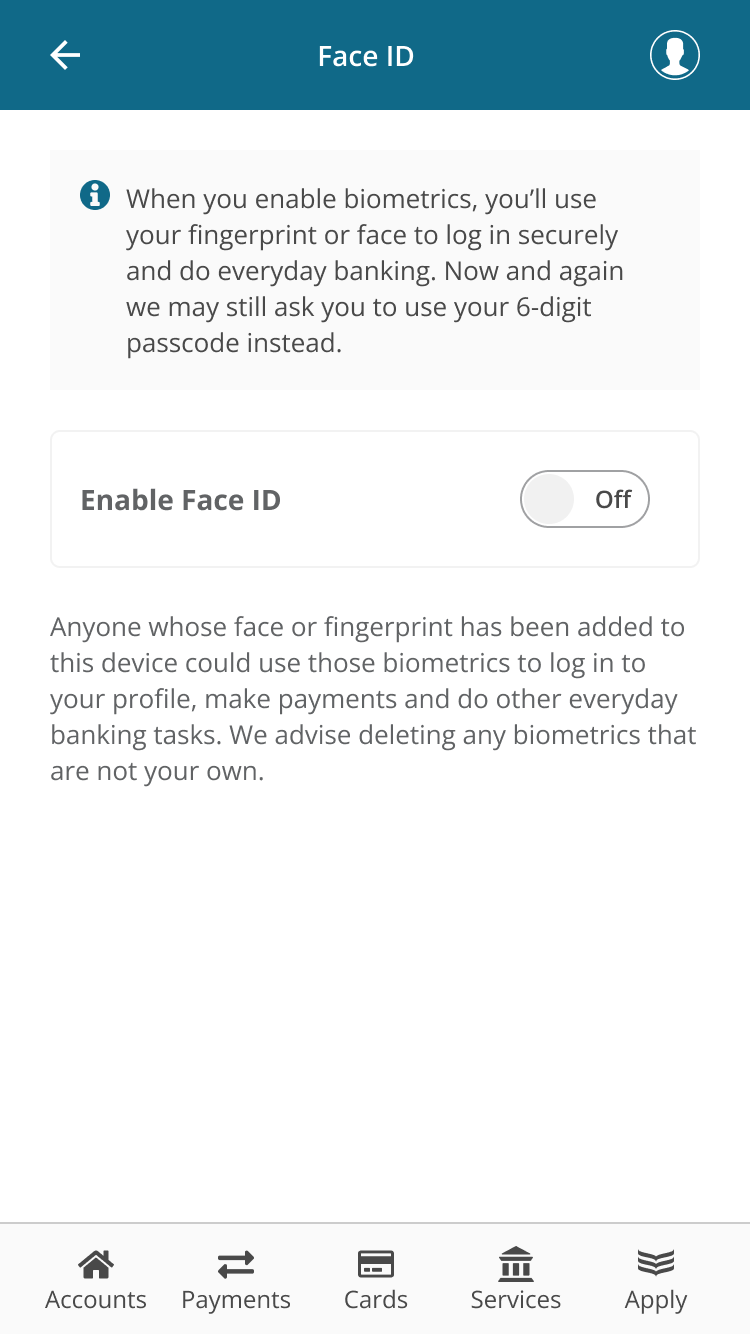
    • Choose Touch ID or Face ID
    • Turn On
    • Complete the approval to finish setting it up

    From now on, when your approval is required, Face ID or Touch ID will be used instead of your passcode.

    Image of the 365 app Touch ID toggle

    Image of the 365 app Face ID toggle

    If you continue to experience issues, please contact our support team and we’ll be happy to help.

    Restoring your Display Zoom settings

    Once you have enabled Touch ID or Face ID on your Apple device, you can then go back to the settings on your phone and restore the setting to Larger Text, if required. Follow Step 1 above to do this, choosing Larger Text instead of Default.

  • I can’t see the ‘continue’ button when setting my passcode

    If you cannot see the ‘continue’ button at the bottom of the screen, this may be because you have accessibility mode enabled or have selected to use an increased font size on your device. We are working to resolve this.

    What can you do?

    You can temporarily turn off accessibility mode or reduce the font size on your device. This is usually found in your device settings.

    Once you’ve done this, you should be able to set your passcode and the ‘continue’ button should be displayed at the bottom of the screen. Once you’ve successfully set your passcode, you can enable accessibility mode or increase the font size on your device again.

  • When I enter my activation code “This code does not look right. Try again” is displayed

    If you see this error message after entering your activation code, it may be due to a typo when you entered the activation code. Do not use the backspace key to clear the content. Tap the red ‘X’ to clear the activation code box and enter the activation code again.
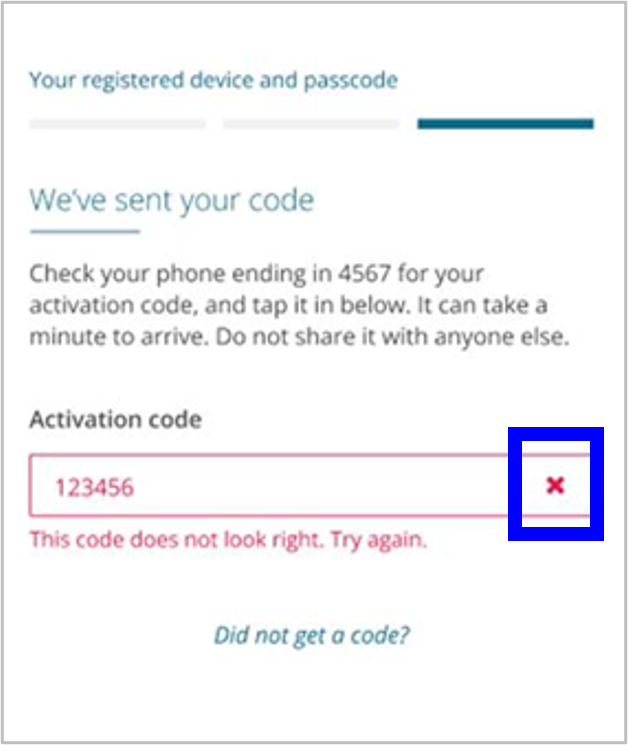
    The 365 app displaying the message 'This code does not look right. Try again' with an X highlighed

  • What do I do if I get an error message when trying to set my passcode on the mobile app?

    You may get an error message when you set up your passcode if:

    • The passcodes you entered do not match
    • The passcode is not six digits long
    • The passcode is too easy to guess (for example, if you use repeated or simple number patterns like 123456)
    • You tried to use your User ID, or part of it, as your passcode.


    Here’s what to do next

    You need to clear the passcode, before trying again:

    • Tap the red ‘X’ or use backspace
    • Make sure both passcode fields are completely empty
    • Enter a new six‑digit passcode in both fields and make sure they match.


Passcode

  • What is a passcode?

    A passcode is a unique 6-digit code that you will set on each of your registered mobile devices. You will need to enter your passcode (or, if you have biometrics enabled, your Fingerprint or Touch ID or Face ID) when you want to access digital banking. For example, when you log in and when you approve purchases.

  • When will I set my passcode?

    Your passcode is set up on your device as part of using the Bank of Ireland mobile app. If you use the Bank of Ireland mobile app on more than one device, you will be prompted to set your passcode on each device. This may happen at different times.

  • Why do I need to set a 6-digit passcode?

    The 6-digit passcode helps to protect your account and supports secure access to the Bank of Ireland mobile app. Passcodes will make your digital banking more secure, quicker and easier with additional enhancements to biometrics.

  • Will my 365 user ID change?

    No, your user ID will remain the same.

  • What should I do if I forget my passcode for the Bank of Ireland mobile app?

    If you have forgotten your passcode, please do not worry. We recommend selecting ‘Forgot your passcode?’ right away.

    To regain access to the mobile app:

    Step 1: Delete and reinstall the Bank of Ireland mobile app

    • On iPhone: Tap and hold the app icon, then select Remove App > Delete App. Reinstall it from the App Store.
    • On Android: Tap and hold the app icon, then select Uninstall. Reinstall it from the Google Play Store.

    Step 2: Re-register for the Bank of Ireland mobile app

    Open the app and tap ‘Let’s go’. You will be asked to provide the following information:

    • Your user ID
    • Your date of birth
    • Either your 365 PIN or debit card details

    You will be prompted to set a 6-digit passcode as part of the registration process.
    Follow the on-screen instructions. It should only take about five minutes.

    Once you’ve re-registered, we’ll carry out a security check before you have full access to the app.

    And that’s it. You’re back in and ready to go.

    Need help getting started with our banking app?


Biometrics

  • Can I use biometrics on the Bank of Ireland mobile app?

    Once you have created your 6-digit passcode, you can use your Fingerprint or Touch ID or Face ID on your mobile device when you log in. Additionally, you can also use Fingerprint or Touch ID or Face ID to approve purchases.

  • How do I enable biometrics?

    Log in to the app and tap on your Profile at the top of the screen, then tap on Biometrics and passcode. Depending on the type of device you are using, you should see a section called one of the following:

    • Biometric login or Fingerprint or Face recognition (for Android)
    • Touch ID or Face ID (for iPhone)
    • Passcode (there will be an option to update your passcode in this section).

    Tap on the relevant section to enable biometrics.

  • Why can I not use biometrics on my device?

    This feature is only available on devices that support biometrics. If there is more than one 365 profile registered on your mobile phone, you cannot use biometrics. This is a security precaution to protect customers’ profiles and accounts. Find out more here.

  • Will I still ‘Swipe to approve’ payments?

    Yes. However, you will now ‘tap’ instead of ‘swipe’.

    We’re replacing ‘Swipe to approve’ and ‘Decline’ with two simple, large buttons, ‘Approve’ and ‘Decline’, that will do the same thing. This will improve accessibility and make it visually easier to approve and decline payments.


Bank of Ireland mobile app

  • What’s the difference between the 6-digit passcode and my 365 PIN?

    The 6-digit passcode for our mobile app replaces your existing 365 PIN in most situations and on each device where you have downloaded the app. You will need to enter your full 6-digit passcode, where previously you only needed to enter 3 of 6 digits of your 365 PIN. Once you set your passcode, you will use it to log in and for everyday banking.

  • Will I ever need to remember my 365 PIN in the future?

    You may need to use your 365 PIN in the future, if you need to re-register for our Bank of Ireland mobile app on a new or existing device. We know it may be hard to remember your 365 PIN just for this situation so, in the future if you are a debit card holder you will have the option to confirm your identity using your Visa debit card details instead.

    Note: We only ever ask you to input your card details on the Bank of Ireland mobile app. We will never ask you to provide your debit card details or PIN over the phone, by text or email.

    If you contact us on phone banking, we may ask you to confirm 3 of 6 digits of your 365 PIN number to check that you are who you say you are.

    If you are a physical security key user, you will continue to use your 365 PIN the same as you do today.

  • When will I use my 6-digit passcode, 365 PIN and user ID

    6-digit passcode
    • This is a unique six-digit code that you will set on each of your registered mobile devices. You’ll need it when you log in and when approving everyday banking actions in the Bank of Ireland mobile app. For example, authorising payments and adding payees. It should be easy for you to remember but hard for others to guess.
    365 PIN
    • This is a six-digit code set up when your online banking is activated. You’ll only need three of the six digits at a time. You will need it to access certain services. It’s important for account recovery, re-registering the Bank of Ireland mobile app on a new or existing device and when calling the contact centre.
    User ID
    • You’ll get it when you first activate your account for online banking. It is your unique ID number
    • You’ll need it to log in to online banking on a desktop. You will not need it every day in the app, but it’s useful if you are locked out. To get a reminder of your user ID, text ‘User’ to:
      • Republic of Ireland: 50365
      • Northern Ireland & Great Britain: 50365
      • Other locations: +353 87 179 0971

  • Will my 365 user ID change?

    No, your user ID will remain the same.

  • Where will you use your 6-digit passcode, Biometrics, 365 PIN and User ID on the mobile app?

    6-digit passcode
    Biometrics (if enabled)
    365 PIN
    User ID
    When you log in to Bank of Ireland mobile
    Yes
    Yes
    No
    No
    When you are asked to approve or decline purchases using Bank of Ireland mobile
    Yes
    Yes
    No
    No
    When you are asked to approve everyday banking actions using Bank of Ireland mobile (e.g., changing your address)
    Yes
    Yes
    No
    No
    When you use phone banking
    No
    No
    Yes
    No
    If you authorise third parties to access your data or make a payment (open banking)
    Yes
    Yes
    No
    No
    If you are re-registering Bank of Ireland mobile on a new or existing device*
    No
    No
    Yes
    Yes

    Note:
    The only time you may need to use your 365 PIN is on phone banking, or if you need to re-register for Bank of Ireland mobile on a new or existing device. In the future, you’ll have the option to confirm your identity using your Visa debit card details, if you have one.

  • Where will I use the 6-digit passcode when online banking?

    When you log in to Bank of Ireland online banking, if you select the Biometrics and passcode option you will be prompted to enter your 6-digit passcode or biometrics on the mobile app. If you use a physical security key to log in to online banking, you will continue to use your 365 PIN the same as you do today.

    After you set your 6-digit passcode
    365 PIN
    6-digit passcode
    Biometrics (if enabled)
    Logging in to online banking
    No
    Yes
    Yes
    If you use a physical security key
    Yes
    No
    No

  • What if I am a physical security key user?

    If you use a PSK to log in to online banking, you will continue to use your 365 PIN the same as you do today.

  • Why are you asking me about location services?

    Allowing location access will help us to identify fraudulent transactions and make services more relevant.

  • I have an account in the Republic of Ireland and an account in Northern Ireland so I have two user IDs. Do I need to set a passcode for both?

    Yes, you will be prompted to set a passcode for each account.

  • What do all these terms mean?

    Term
    What it means
    User ID
    The ID you use to log in to online banking on your desktop computer. You enter all 6 or 8 digits.
    365 PIN
    The PIN you enter to log in to the app on your mobile device(s) and online banking on your desktop computer, before you have set your new passcode. You enter 3 of 6 digits.
    Passcode
    The 6-digit passcode you create then use to log in to your registered mobile device, and also to complete a range of banking tasks. You enter all 6 digits.
    Biometrics
    The Fingerprint or Touch ID or Face ID that you can use on your mobile device(s).
    Mobile device
    For example, a mobile phone that you have downloaded the mobile app to.
    Physical security key (PSK)
    The small device used to confirm your identity by generating codes that you enter into 365 online.